Your business identity
Show the saved company logo and business name without forcing a duplicated wordmark.


Create a professional construction invoice, show clients exactly how to pay, track the balance and switch on polite reminders for overdue money.
01
Invoice reviewed
02
Sent by you
03
Balance tracked
04
Reminders follow up
A complete invoice, not a blank shell
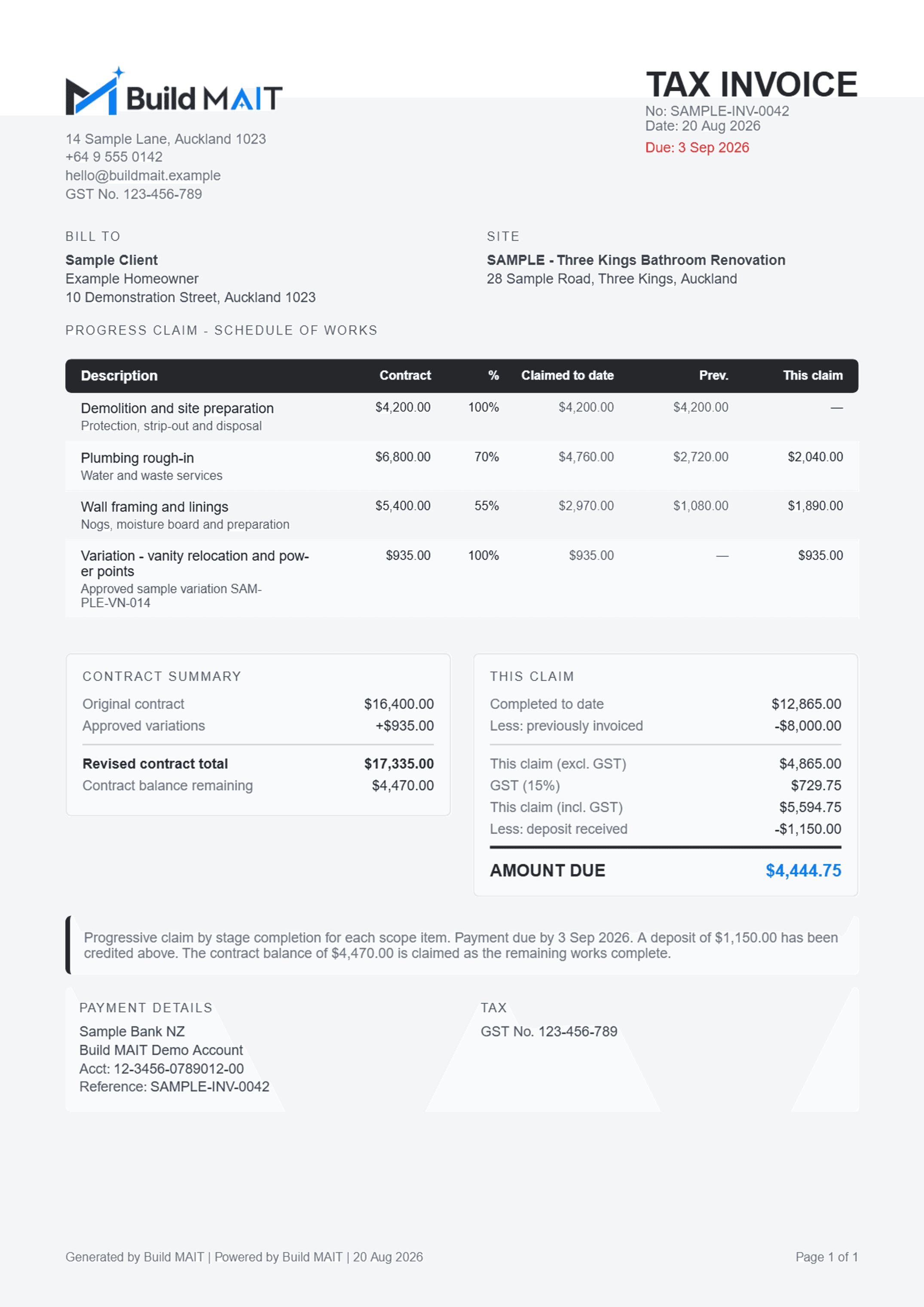
Your invoice should remove questions, not create another email chain. Company identity, claimed work, totals and payment details stay readable in one document.
Show the saved company logo and business name without forcing a duplicated wordmark.
Keep the client, project, line items, tax, due date and balance in one professional document.
Display the bank account details and payment reference saved in company settings.
Keep approved work and supporting job records connected to the money you are claiming.
From approved work to paid
MAIT does not send it behind your back.
You check and issue the invoice. Only the overdue reminder schedule can run automatically, and only after you switch it on.
Add completed work, progress amounts and approved variations to the correct client and job.
Check the business identity, line items, tax, payment terms and bank details before you issue the invoice.
Track sent, part-paid, paid and overdue balances from the Get Paid view instead of maintaining a separate list.
If an invoice stays unpaid after its due date, send up to three reminders seven days apart. They stop when it is paid.
Overdue follow-up without the awkwardness
Enable client payment reminders once. When a sent invoice remains unpaid after its due date, Build MAIT can send up to three professional follow-ups and logs the count. Payment stops the sequence.
Invoice and payment reminder FAQ
Yes. Build MAIT creates professional invoices linked to the client and job, including line items, tax, totals, payment terms and saved company details.
Yes. Company settings control the logo and business name. The document layout avoids unnecessarily repeating the name when the uploaded logo already contains a wordmark.
Yes. When bank information is saved in company settings, the invoice can show the account name, bank account number and payment reference.
When you enable client payment reminders, an unpaid invoice can receive up to three reminders after its due date, each seven days apart. Reminders stop when the invoice is paid.
No. You review and issue the invoice yourself. Automatic payment reminders are a separate opt-in rule for invoices that have already been sent.
No. The downloadable example uses synthetic names, addresses, line items, bank information and contact details purely to demonstrate the product format.
Start free for 14 days. No credit card and no sales call.